
Loading your matters…
Checking what is running…
Upload files
Uploads go to the matter and patient picked under Files, Matters. With a patient chosen, everything goes into that patient and subfolders are kept. With only a matter chosen, each folder you add becomes a patient of that matter named after the folder (new or existing).
The app reads each file and files it under its patient in the matter you picked. Guideline PDFs can go in the same box: they are filed under Guidelines. Files it is not sure about wait for you; ask Claude which ones and where they go.
Finished drafts
Pick a matter above to see its finished drafts.
Draft this batch
Draft every patient that is ready at once: each draft picks its patient's guidelines from the denial letter (or, when the letter names none, for the clinical issues that drove the admission) and lists any doubt about them in DRAFT NOTES. Patients whose files are still being sorted wait; press again once they are ready. Then put every draft in one Word file to read the batch through. Revise that file in Word, keeping each [FMNS patient start] and [FMNS patient end] line, and upload it back: FMNS saves each patient you changed as your revision and learns from your edits (a small model cost per patient).
Ask Claude for everything else
Drafting, summaries, questions about a patient's records, files that need sorting and changes to your rules: ask Claude in a chat with the fmnsai connector on. For example, "Draft Smith and Jones" or "Which files are waiting for me?"
First time? Set up Claude on your Mac
Connect Claude
Set up Claude once per person with the Mac profile below.
Guided setup and system test. Opens a Claude chat that walks you through connecting FMNS, then tests everything end to end with a synthetic sample record (a test matter you can delete afterwards). Press Enter in Claude to start.
Open in Claude Desktop Open in Claude on the web Download the sample record
Set up Claude on your Mac (start here)
Do this once. The pictures are simple drawings, so your screen may look a little different.
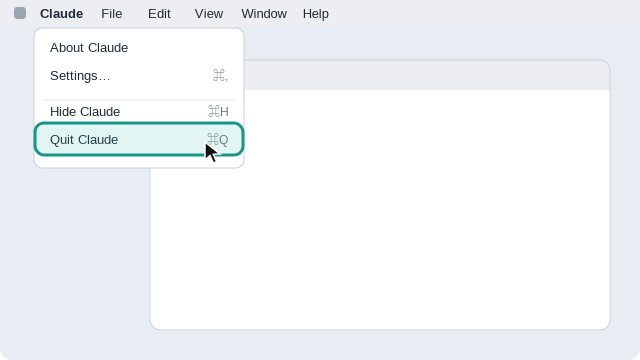
- If Claude is open, quit it: click Claude in the menu bar at the top of the screen, then Quit Claude. (No Claude yet? Install it from claude.ai/download first.)
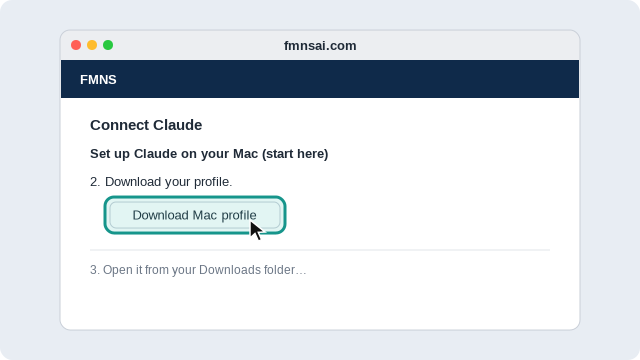
- Click this button to download your profile:
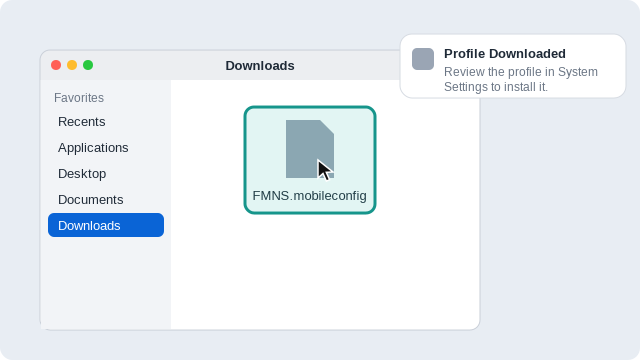
- Open your Downloads folder and double-click FMNS.mobileconfig. A "Profile Downloaded" message appears. Nothing is installed yet.
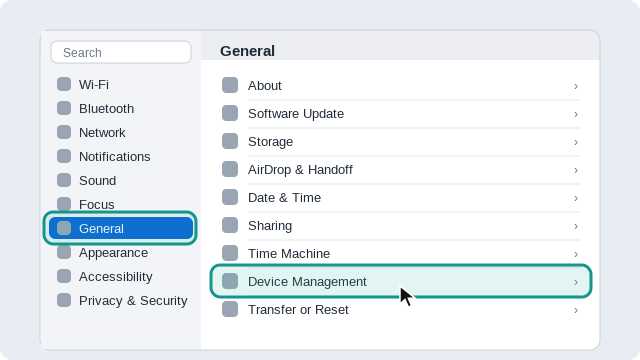
- Open System Settings (click the Apple menu at the top left, then System Settings). Click General, then Device Management. You may need to scroll down to see it.
- Under Downloaded, double-click FMNSAI Claude Desktop.
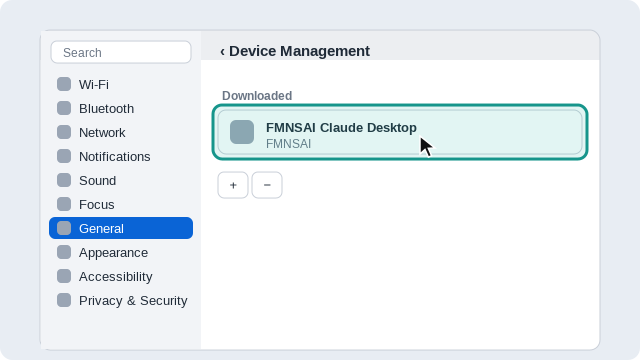
- Click Install…. If it says the profile is unsigned, that is expected.
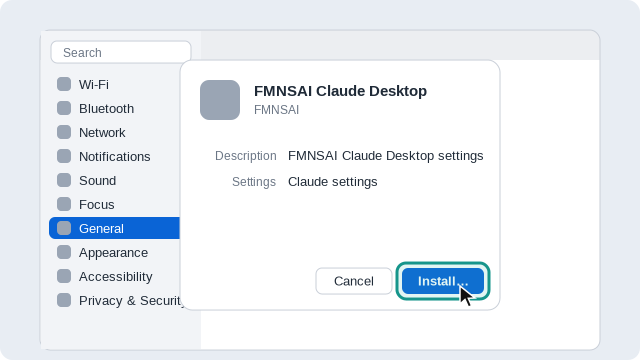
- Click Install again to confirm.
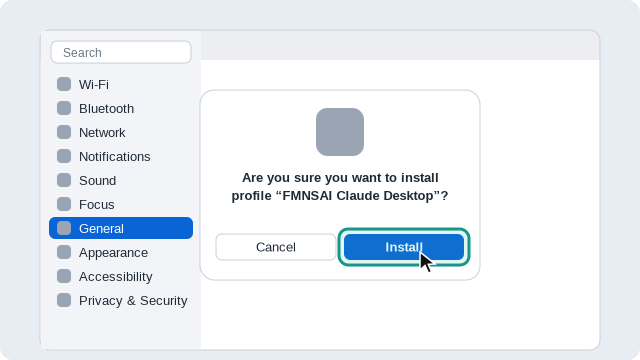
- Type the password you use to unlock your Mac and click OK. FMNSAI Claude Desktop now shows in the list.
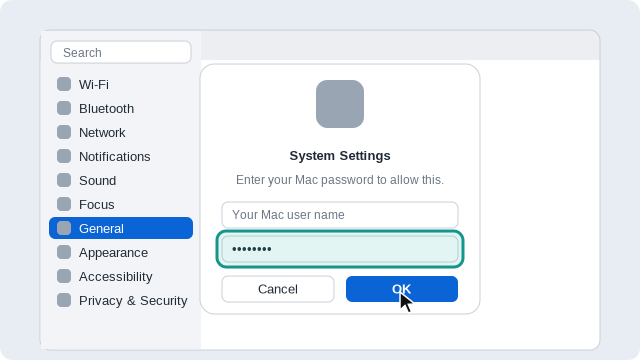
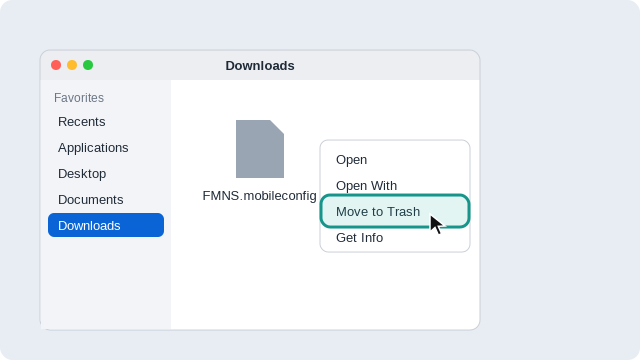
- Back in Downloads, right-click FMNS.mobileconfig and choose Move to Trash. It holds a private key, so don't share it.
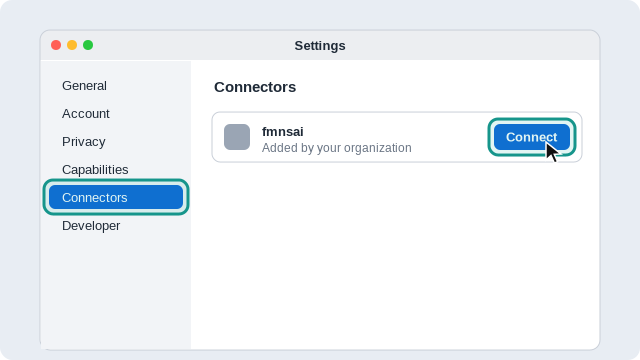
- Open Claude. Click Claude in the menu bar, then Settings. Click Connectors, then Connect next to fmnsai.
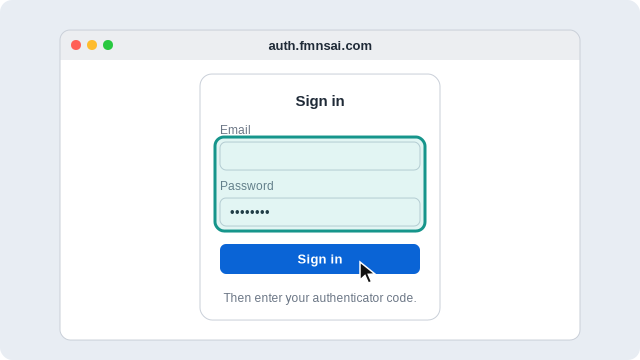
- A sign-in page opens. Sign in with your FMNS email and password, then your authenticator code.
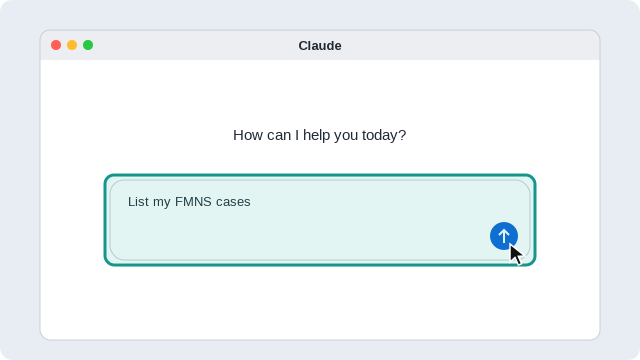
- Back in Claude, start a new chat, type List my FMNS matters and press Return. Your matters should appear.
To remove it later, open Device Management again, choose FMNSAI Claude Desktop and click the minus button.
Work on a matter in Claude, step by step
- Set up Claude once with the Mac profile above.
- On this page, choose the matter and patient (or make new ones), then drop the patient's files or folder and press Upload. Each PDF is split into its separate documents on its own; "Running jobs" shows progress.
- When the splits are done, press Summarize patient. An email arrives when Case Summary.docx is ready, and it appears under "Patient records".
- Press Open in Claude. Claude Desktop opens a new chat that names the patient. Type your question at the end and press Enter, for example "Build a timeline of the ED visit."
- Claude reads the split records and cites the document and pages. To check a point, ask "Show me those pages."
- You can also run everything from the chat. Try "List my FMNS matters", "Split the new PDFs in this patient", "How are the jobs going?", "Summarize this patient" or "Prepare a tar download of this patient".
- Claude opens your drafts, summaries and other FMNS files itself: ask "Show me the Smith draft" or "Let's go through the batch", and there's nothing to download or attach. Download a file from this page or from Claude's link only when you want it on your computer, then share the file itself, never the link.
Other option: add FMNS as a custom connector
- In Claude (web or desktop app), open Settings, then Connectors, and choose Add custom connector. On a Team or Enterprise plan, an owner adds it once under Organization settings, then Connectors.
- Name it fmnsai. Paste this as the server URL:
- Leave Advanced settings empty. Choose Add, then Connect. Sign in with your FMNS email, password and authenticator code.
- In a chat, turn fmnsai on from the tools menu. Ask, for example, "List my FMNS matters."
Builder tools
Files
Pick a matter, then a patient, to see the patient's records.
Matter notes
Instructions every processing and drafting job for this matter follows: splits, patient summaries, opinion drafts and rebuttals. Anything goes, for example which guidelines to use or avoid, how this production stamps Bates numbers, or what to look for. A change applies to jobs started after you save it; patient summaries are rewritten on their next run.
Patient records
| Record | Size | Modified | Split |
|---|
Documents in each record
Every upload lands here first. The app reads each file and moves it to its patient, Guidelines or Reference when the content leaves no doubt. Files it is unsure about wait here, with the reason, for you to move.
| File | Size | State |
|---|
| Guideline | Size |
|---|
Dr. Firestone's past reports, rebuttals, instructions, literature and case work: how he writes, never evidence.
| File | Size |
|---|
Opinion drafting
Choose a matter above to draft its opinions.
Opinions
| Patient | State |
|---|
Drafts are Word files at the top of each patient folder. Open and edit them on the drive; approving records the text as it reads then.
Expert report
Puts the approved patient drafts into one Word report in the matter's _matter/report folder, under the matter name and date, with no cover letter or intro (your intro sections open rebuttals only).
Settlement analysis
Writes a claim-by-claim settlement analysis (rule 14) for the payor in the matter's _matter/settlement folder, from the approved patient drafts: a summary table, rows grouped and colour-coded by verdict, and the settlement disclaimer. No model call, no cost.
Matter settings and claims index
This matter's notes are under the matter picker in Files.
Claims index
Rebuttals of opposing reports
Put each opposing expert report (a PDF with a text layer) in the matter's _matter/rebuttal folder on the drive. The rebuttal is written beside it as a Word file. "Draft rebuttal" puts each patient's full write-up (your current draft) before its Additional Rebuttal Commentary; "ARC only" is for when the first-pass write-ups were already submitted. A patient with no draft yet gets it drafted first (more model spend), marked as not yet reviewed until you edit or approve it.
Summaries and templates are Word files in Reference or in the matter's _matter folder. With your summaries, each patient's write-up comes from them unchanged and no patient is drafted.
| Report | State |
|---|
Learned rules
A rule you add or accept goes into your rule documents (the section it belongs in) or, for this matter only, into the matter notes, after a check for clashes with your other rules. Rules listed under Every matter and This matter were saved before that; they still reach drafts until you file them into your documents.
Proposed from your edits
Every matter
This matter
Add a rule
Rule documents
Dan's drafting rules, used for every matter. Changes apply to drafts started after saving.
Rule documents in Word
Send Dan the rule documents as Word files and bring his edited files back. Nothing he changed is used until you load it here, one document at a time; each load is kept in that rule's history.
Playbook
How Dan writes, as rules learned from his redacted example write-ups and his feedback. The distiller only proposes changes; each one joins drafting once accepted, and every accepted change is kept in the revision history. Held-out matters (Texoma by default) are never learned from, so backtests on them stay fair.
Proposed changes
Rules
Learn
Examples
Feedback
Held out for backtesting
Backtest
Drafts the held-out eval cases (Texoma by default) with the current rules and compares each draft with Dan's own version. It never changes the patient folders. Word overlap is a rough guide only.
Cases
Latest run
Earlier runs
Rule trials
Small wording rules proposed from Dan's edits are tried on sample cases: each is drafted on his rules as they are and with the new rules placed in them. They apply themselves when no verdict changes and the drafts read no less like his; otherwise they wait for him. An applied rule is undone from Revision history.
Revision history
Every saved change to the rule documents, playbook, learned rules and matter settings: who, when and why. A rollback puts an earlier text back only once someone approves it, and is itself kept in the history.
Rollbacks waiting for approval
Rules at a time
What drafts followed at a past moment: each document's revision then in effect (with the chosen matter's settings and learned rules), or, given a draft's rule set from its status, the exact texts and prompts it was written from.
Guideline library
Drafts cite only these. Add guideline PDFs on the drive under _guidelines/Source/Edition/.
Evals
Criteria, one per line
Reference cases
| Name | Patient | Last comparison |
|---|
Add a reference case for the chosen patient
Feedback
Problems and change requests about FMNS. Claude files one when someone says something is wrong or asks for a change, with the passages, files and tool calls involved; you can file one here too.
Report a problem or ask for a change
Alerts
Problems on this site as they happen: failed jobs and tool calls, errors of this page itself, quota pauses, refusals, the daily spend warning, feedback and drafts left with open checklist issues. Mark one handled once it is dealt with. “Send a test error” throws a deliberate page error, to check that page errors reach here and the alert email.